


Bring your AI, your tools, and your context to your next page test
Use your own AI with ABConvert's Visual Editor. Bring Figma designs, campaign briefs, and customer research into a page test, then review desktop and mobile.
Your next page test probably does not start in the editor.
The design is in Figma. The campaign brief is in a document. Customer questions are in the research you have already shared with your AI.
Rebuilding that context in another conversation is work before the test can even begin. ABConvert's updated Visual Editor lets you work with your own AI, using the tools and context you choose to give it, to build the change on your storefront.
The point is not just to ask for a different headline. It is to connect the reason for the change, the design you want to try, and the test that tells you whether it helped.
01Bring the design and the brief into the same conversation
Connect your AI to ABConvert through MCP. The assistant can use ABConvert's editor tools alongside other tools you have connected to that same assistant, and documents or instructions you provide.
For example, Figma's MCP server can supply design context from a frame you choose. ABConvert's connection gives your AI a way to build and refine a variant on your store. Each connection has its own setup, permissions, and access requirements.
This is not a native Figma import in ABConvert. Your AI reads the design through its Figma connection and uses ABConvert to make the test's page changes. The result still needs review; a design reference is not a guarantee of a finished, pixel-perfect page.
Example: turn a Figma hero into a testable draft
With both connections set up and the intended design frame shared, you could ask:
Use this Figma hero as the reference for Variant A. Keep the price and offer unchanged. Check the result on desktop and mobile, and leave the test as a draft.
The design supplies a direction, not evidence that it will sell better. Start with a hypothesis about the shopper's decision, then compare purchases and revenue per visitor with Control.
Figma is one example. A campaign brief, brand guidelines, or customer research can shape the same request when you give your assistant access to them. What it can read depends on that tool's connection and the permissions you grant; those sources do not become ABConvert integrations automatically.
02Build the draft on your actual store
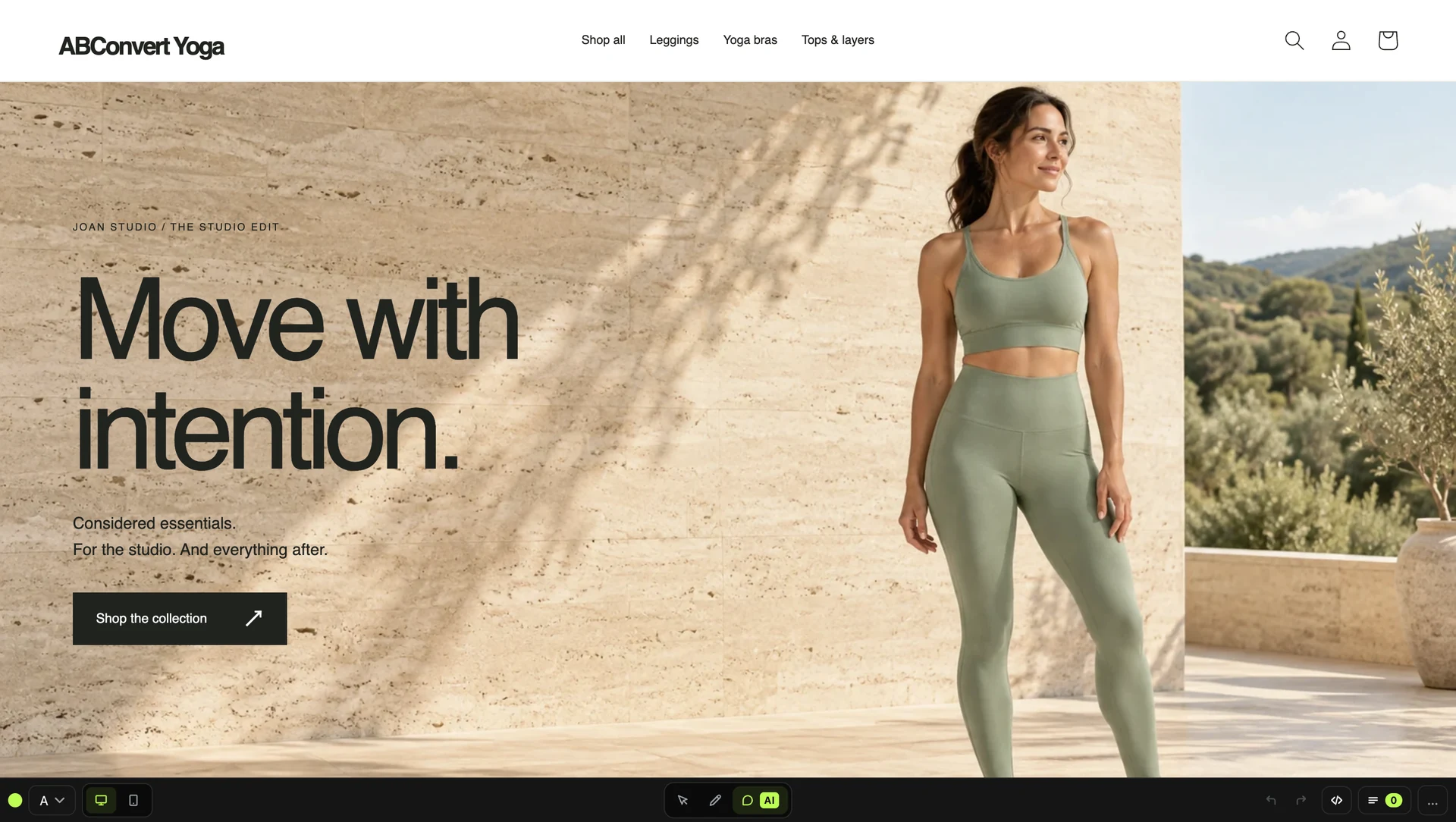
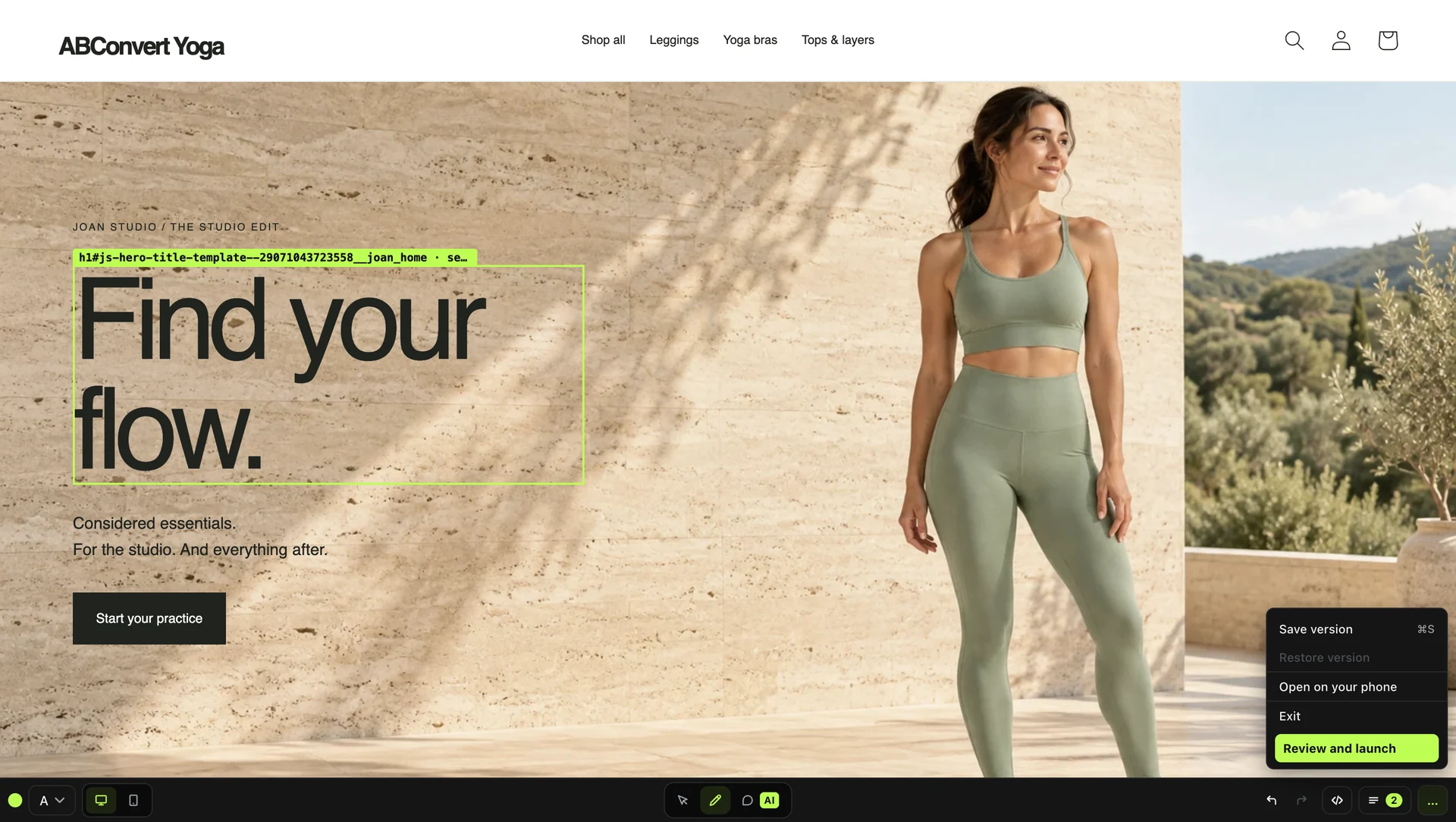
Pick Edit in store on the version you want to change and your store opens in a new tab with the editor on top. For a draft test, these changes are not shown to shoppers until you launch it.
The editor has three modes: Navigate to browse like a shopper, Edit to change an element, and Comment to leave a note for your AI.
03Why use the store editor instead of the in-app editor?
Both editors use your store's theme, menus, and fonts, and both write changes to the same test. Those are not new store-editor features. Edit in app keeps the page inside ABConvert. Edit in store opens your storefront in its own tab, with the editor on top.
Use the store editor when you want to work with your AI on that page or check a change where shoppers interact with it, including a cart drawer or app-rendered content.
- Work with your own AI. Use the assistant and connected context you have chosen, then review or continue its changes yourself.
- Edit cart drawers and accessible app content. Open the drawer or section you want to change and work on its elements. Some apps isolate their content; being visible on the page does not mean every part can be edited.
- Keep one shared change list. You and your AI can see the recorded changes and refine the same draft.
The in-app editor still makes sense when you want to stay in the admin and the change is a word, a link, an image, or the order of elements.
04Edit by hand: words, images, links, and layout
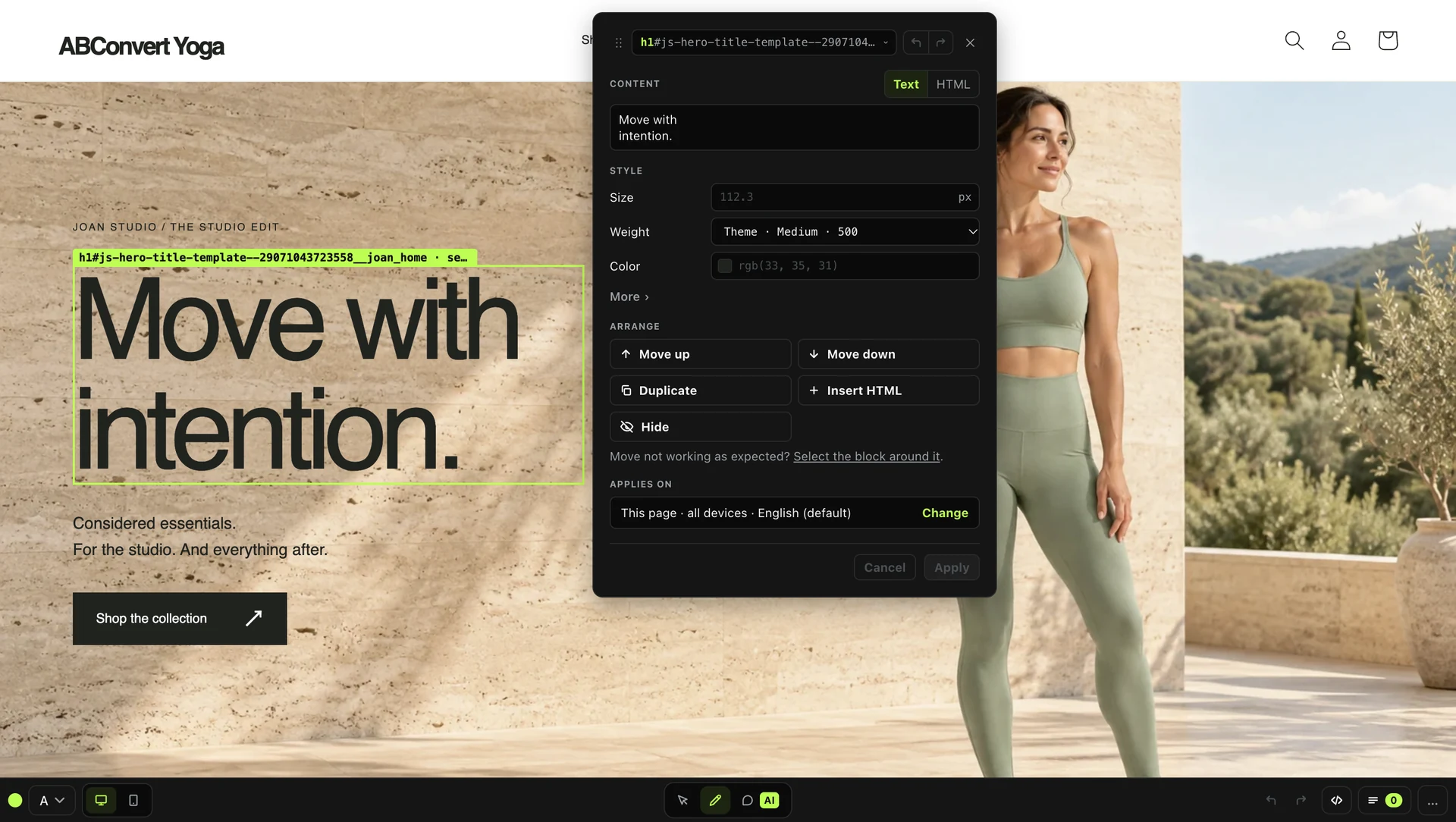
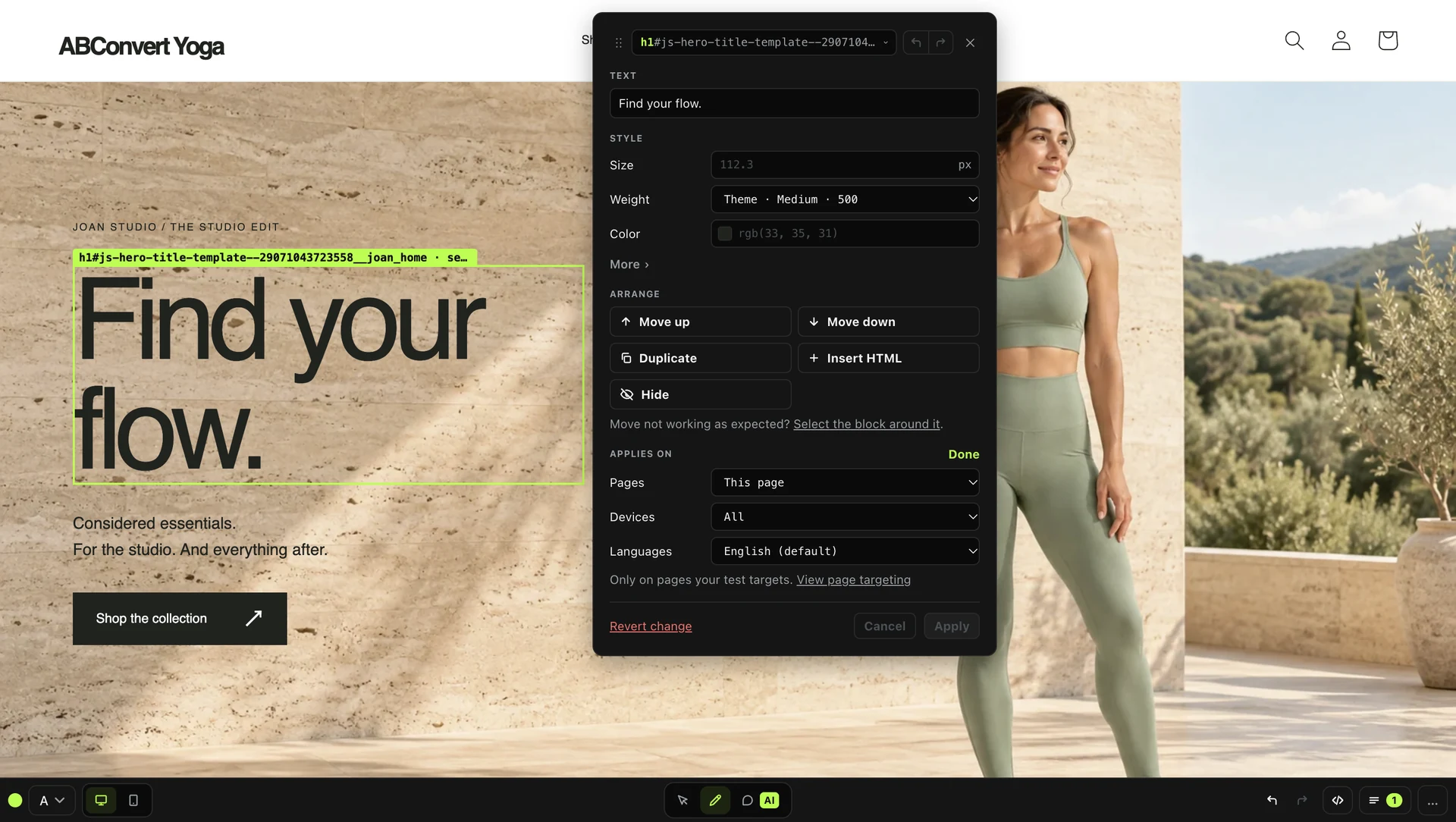
Click an element in Edit mode and a card opens for it. Change the words of a headline, swap an image (the file goes to Shopify Files), or change a link's words and address. For anything else, edit the style or HTML directly. When you swap an image, the card asks whether to replace it elsewhere on the page too, such as the thumbnail or the zoom slide.
The Arrange row moves things around: Move up, Move down, Duplicate, Insert HTML, and Hide. Hide removes an element for this version only. Nothing is deleted in Shopify.
Decide where each change applies
Every change has an Applies on setting: this page, every page the test runs on, or specific pages. Pick all devices, desktop only, or mobile only, and all store languages or just the ones you choose. That matters because menus and some sections have separate desktop and phone copies, so a change that looks right on desktop can be missing on a phone.
05Describe the change and let your AI make it
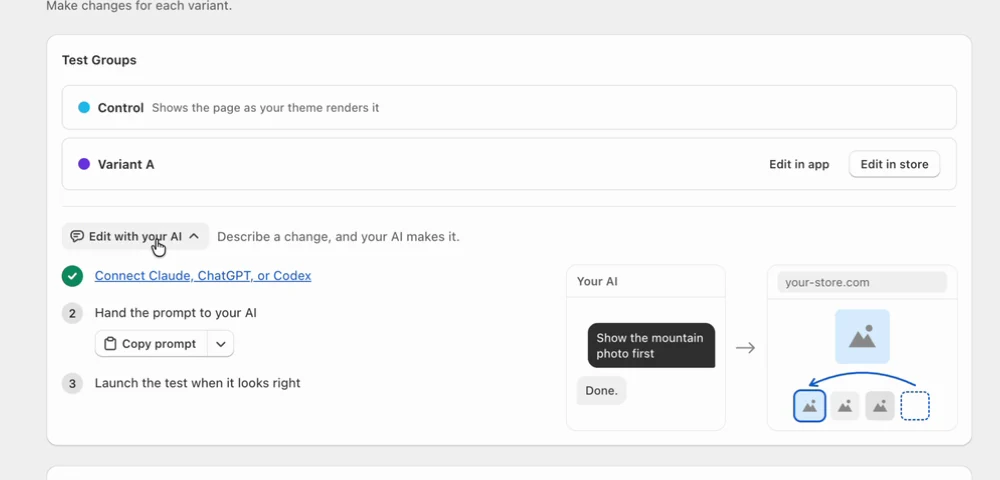
If you would rather not click through the page, hand the job to your AI. Connect your AI to ABConvert through MCP once per store, then open Edit with your AI in the test wizard. ABConvert gives you a starter prompt to open in your AI, or copy for other tools. Your AI opens the test's store page and works from there.
Then ask for the change in plain language. Change the hero headline. Move reviews above the fold. Add an upsell block or a free-shipping progress bar to the cart drawer. Your AI can make anything the editor can make: text, images, links, moving, duplicating, hiding, and setting where a change applies. When a change needs more than the card can express, it writes the version's custom CSS and JavaScript, and it checks the result on desktop and mobile.
Use your AI's browser when supported so you can watch the page change as it works. Claude, ChatGPT, and Codex have setup paths; other clients depend on their MCP support and browser capabilities. Your assistant's other tool connections are separate from its ABConvert connection.
06Point at the part you mean
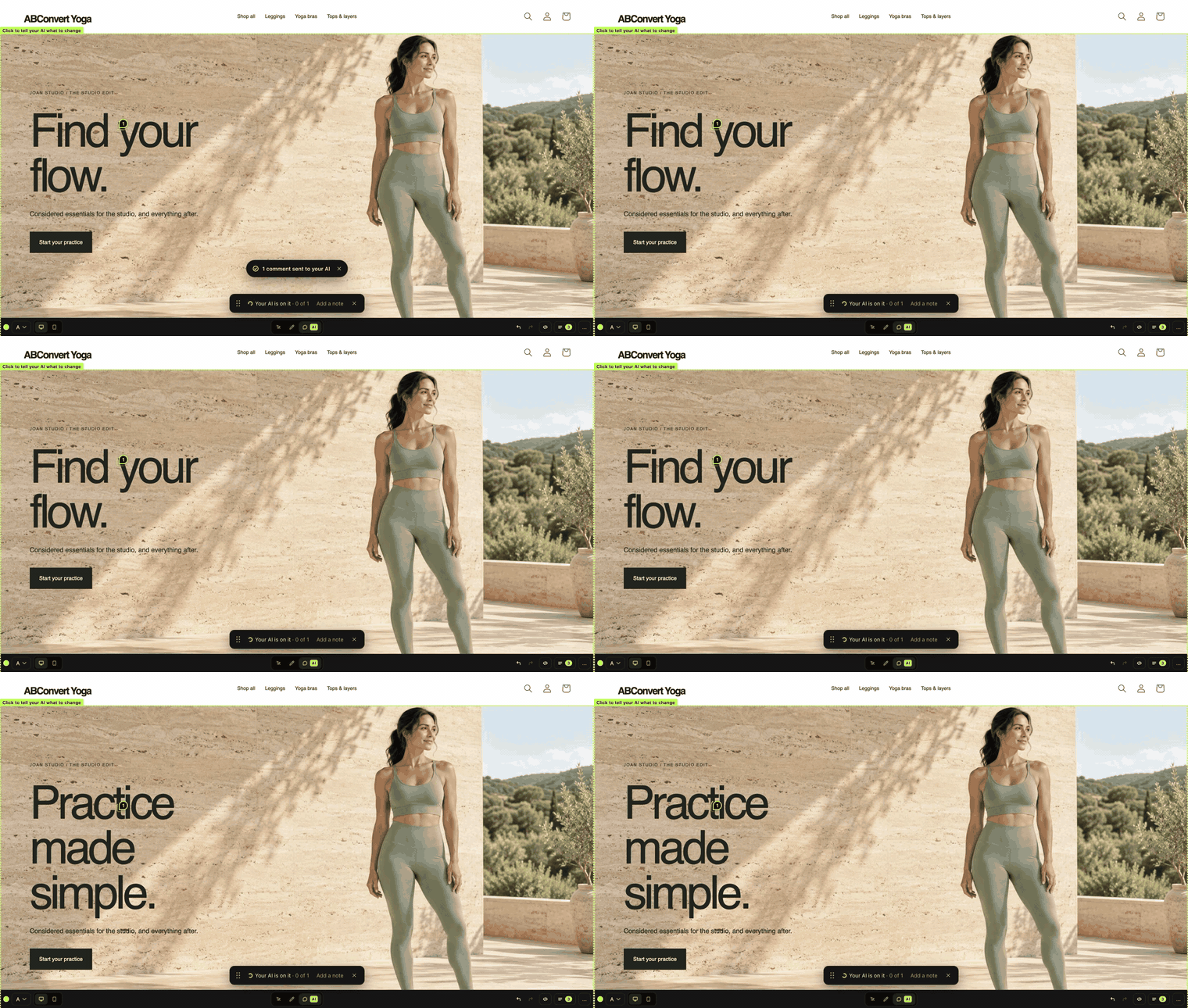
Words are not always the fastest way to say which part of the page you mean. In Comment mode, select an element and write what you want, then add as many comments as you need. Send them with an optional note for the whole set.
One detail worth knowing: sending does not start your AI. If it is already watching the page, it picks the comments up on its own. If not, copy the prompt the editor offers and paste it into your AI. Each comment comes back marked Done, or Not done with the reason, and your AI only asks you a question when a comment is ambiguous.
07Check the same shopper action on desktop and mobile
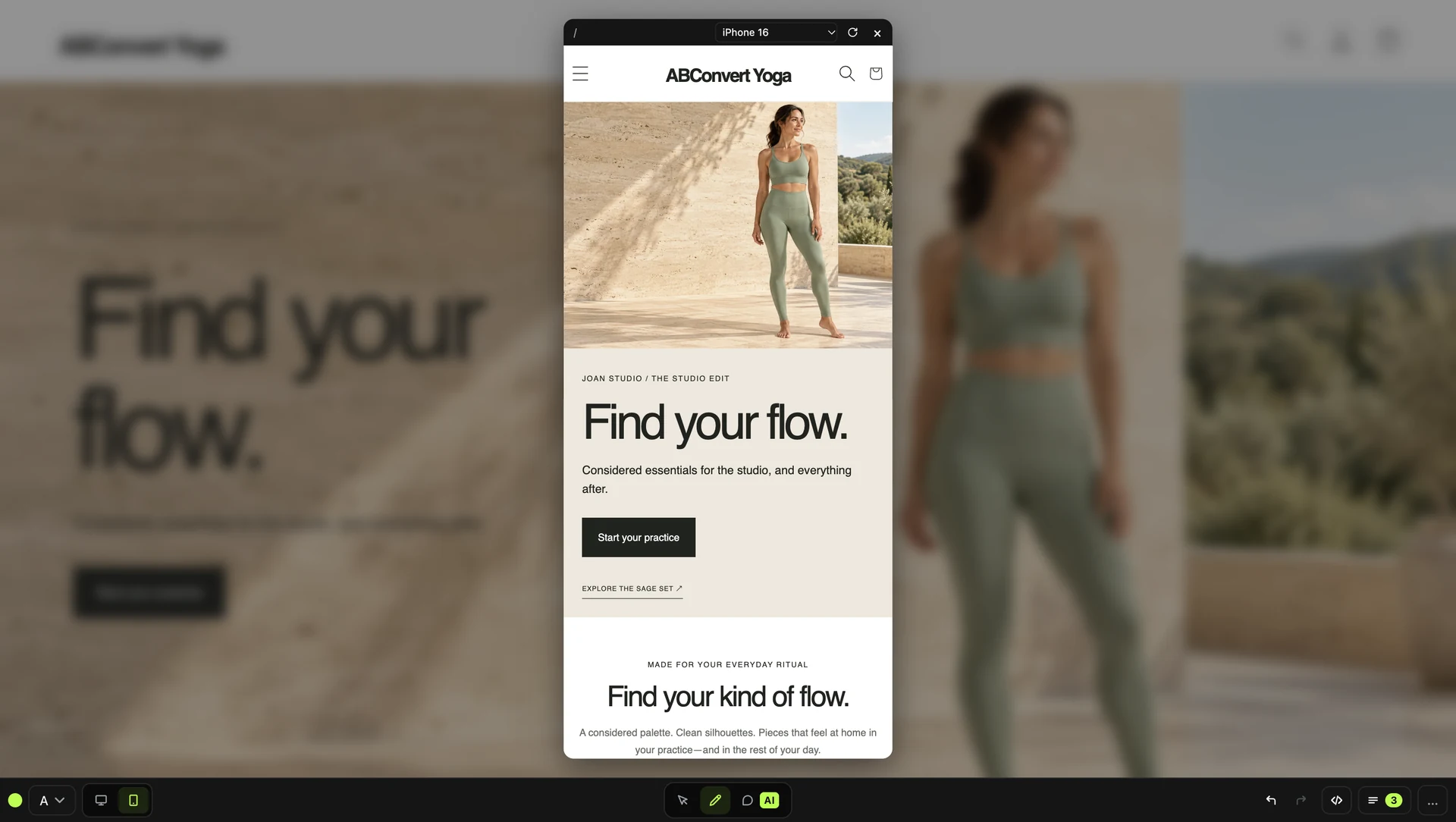
Checking mobile means more than shrinking the page. A theme can use one element for the desktop navigation and a different element for the mobile menu, even when a shopper sees the same link text. Editing one does not automatically edit the other.
If you change a navigation label or destination, open that same menu on desktop and mobile. Check the label and confirm the destination in both views. If the mobile menu uses a different element, make and check that change too. An All devices setting controls where a change applies; it does not turn two separate elements into one.
Apply the same check to your cart drawer or other changed interactions. The mobile preview should show the actual menu or drawer you are testing, not just an unrelated phone-sized hero image.
Review the draft before launch
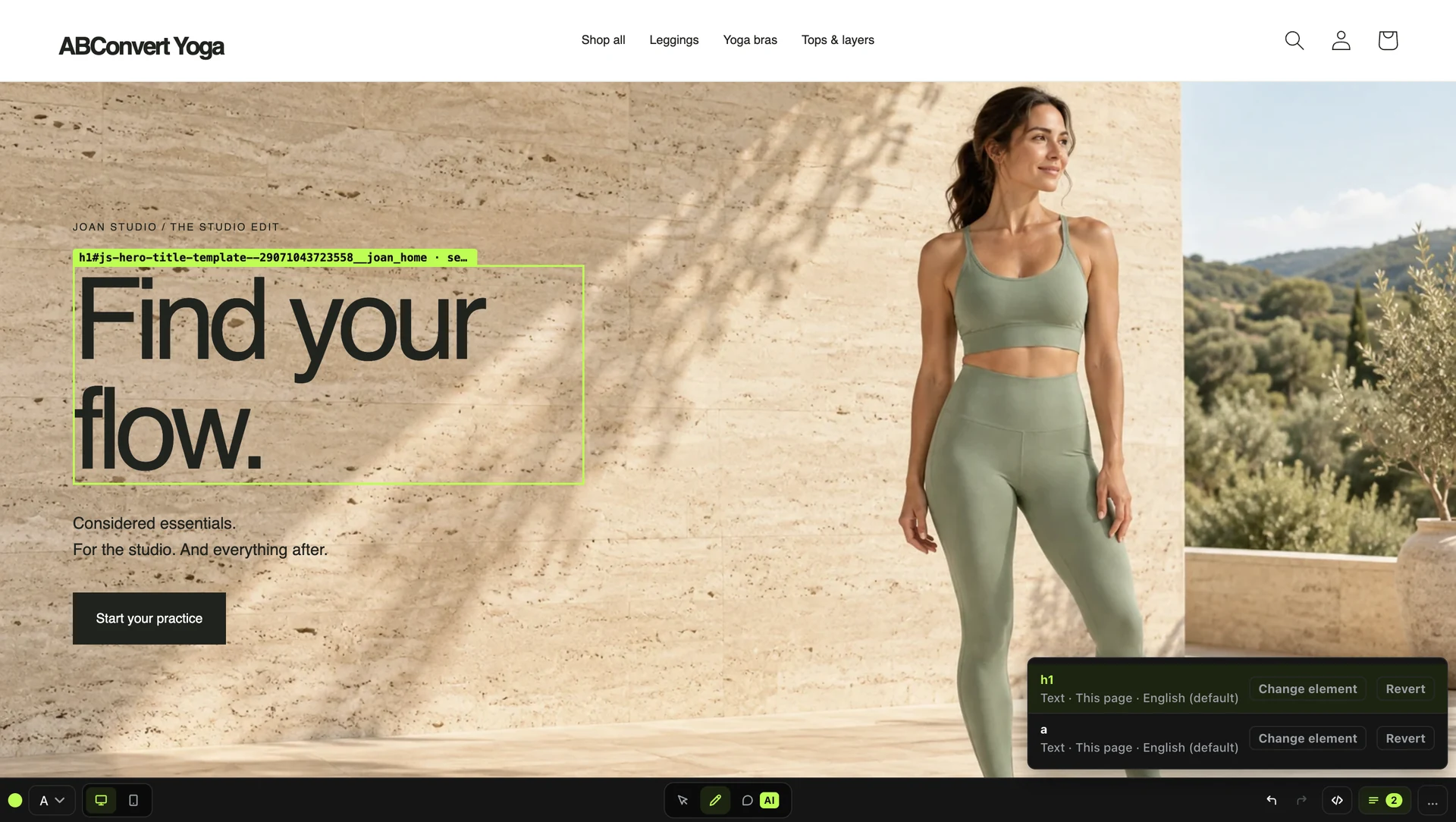
You and your AI can work on the same page, and you can undo or continue each other's work. Undo and Redo act on the latest edit, the Changes list lets you Revert one specific change, and Save version stores the current state under a name you can come back to. Restore version puts a saved one back and cannot be undone, so save the current state first.
Open Review and launch from the editor menu, launch from the test page, or ask your AI to launch it. Launching always needs your confirmation. On an active personalization, changes reach shoppers immediately, so your AI asks before it edits.
08FAQ
Can my AI and I edit the same page at the same time?
Yes. You can undo or continue each other's work, and the Changes list shows every edit on the page.
Which AI tools work?
Use a compatible MCP client. Claude, ChatGPT, and Codex have setup paths; available browser features depend on the client. Connect your assistant to the intended store before editing.
Is this a native Figma integration?
No. Connect Figma and ABConvert separately to the same compatible AI assistant. Figma supplies design context; the assistant uses ABConvert to build a test draft. Review the result before launch.
Does changing the desktop menu also change the mobile menu?
Not necessarily. A theme can render them as separate elements. Open the same menu in both views, check its label and destination, and edit the mobile element separately if needed.
What if a change did not land?
Check that the intended element is accessible and that the page, device, and language scope is right. A theme redraw or an isolated third-party widget can need a different approach; custom code cannot bypass every boundary.
Bring your next page idea into a test
Use your own AI and context, review the draft, and let shopper behavior judge the change.



